
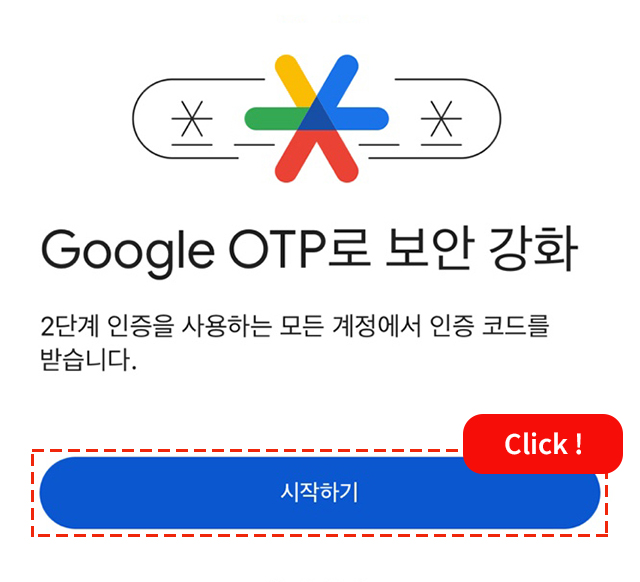
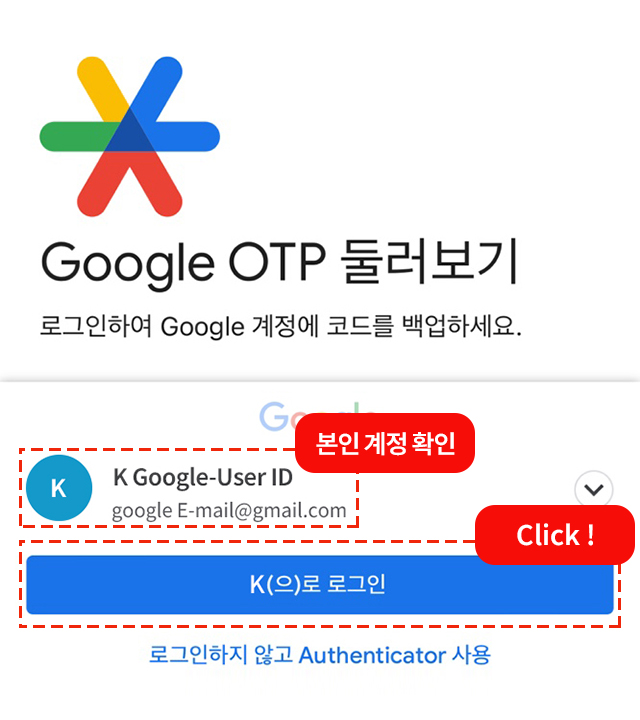
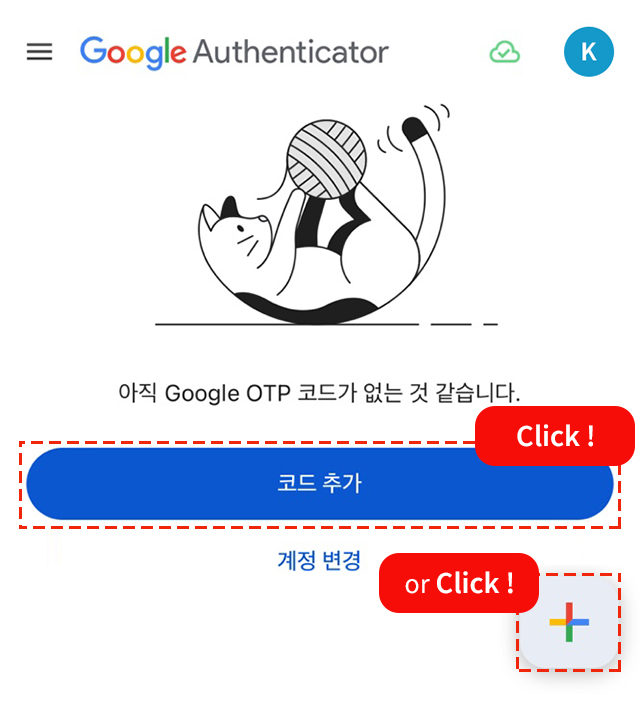
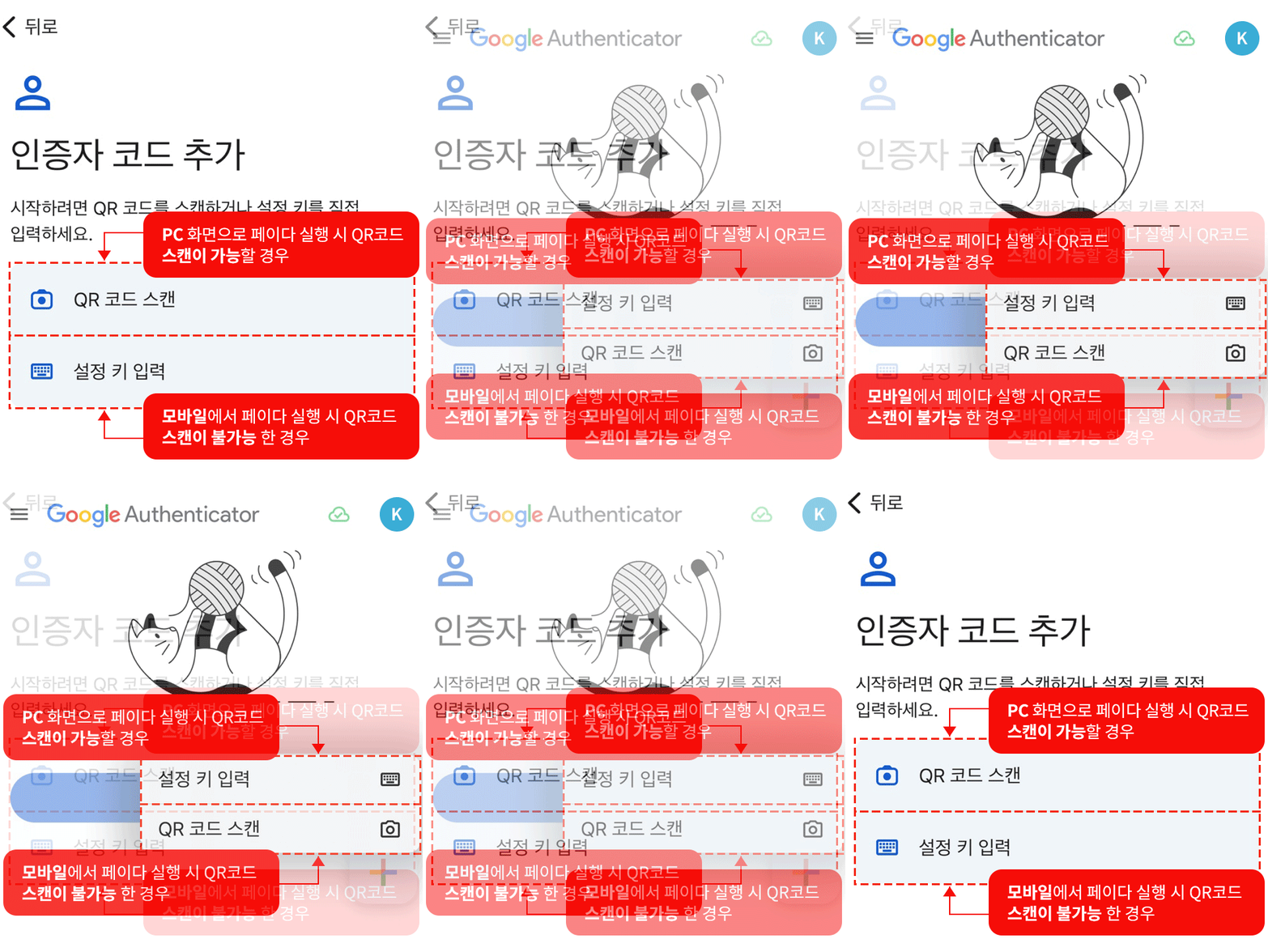
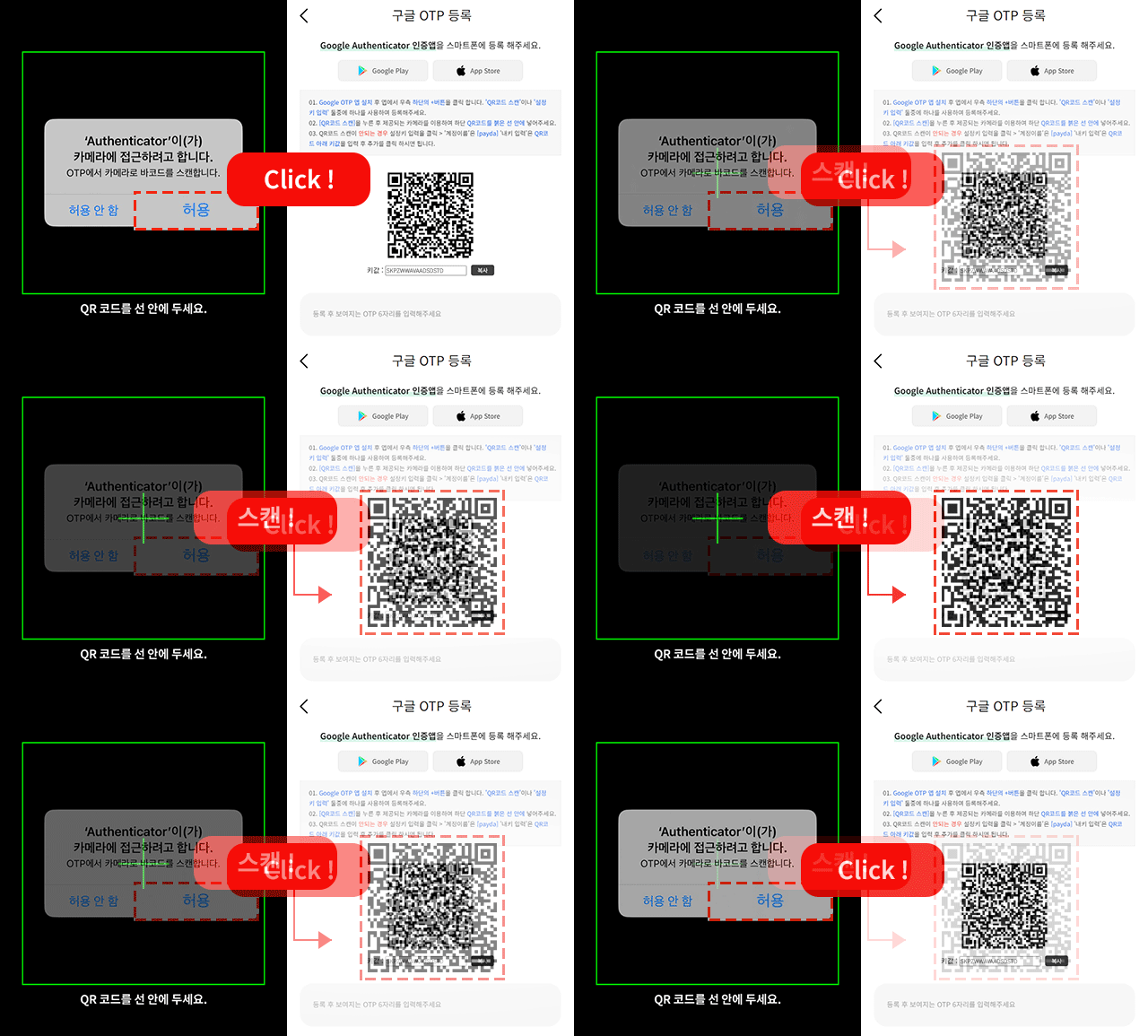
Click 'Allow only while using the app' and scan the QR code displayed on the screen by aligning it within the camera frame
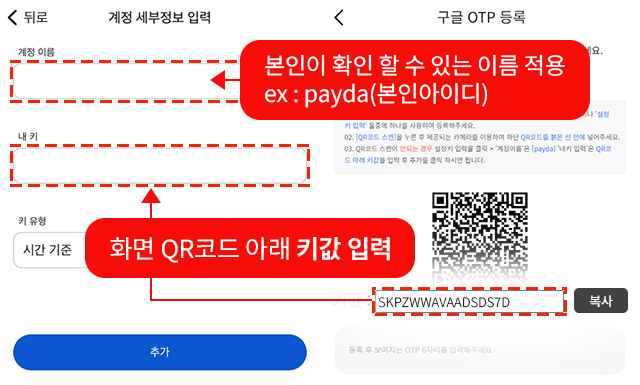
Enter the key value below the account name and QR code on the screen, then click Add
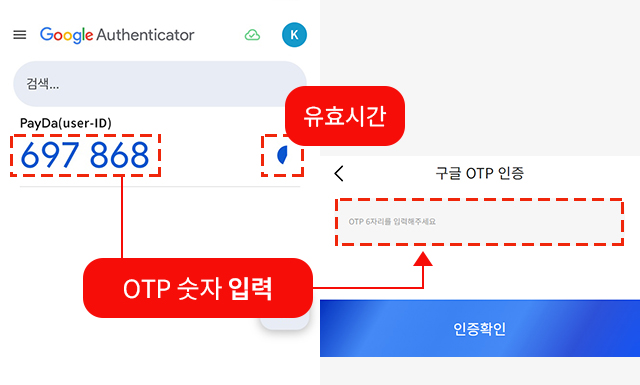
When entering the OTP number, you must enter a number where the validity time area on the right is more than half remaining for the authentication to be processed successfully.. If the validity time is too short, wait and enter a new number after checking
Please contact the customer service center. After submitting the documents (copy of ID, copy of bankbook) used for authentication during registration, if the information matches the registration details, the customer service center will proceed with the reset, and you can re-register the OTP.